IAM, ECS, and Task Definition Deployment
Overview
This section describes the configuration steps for IAM, Amazon ECS, and Task Definition to deploy the backend on AWS Fargate.
Deployment Steps
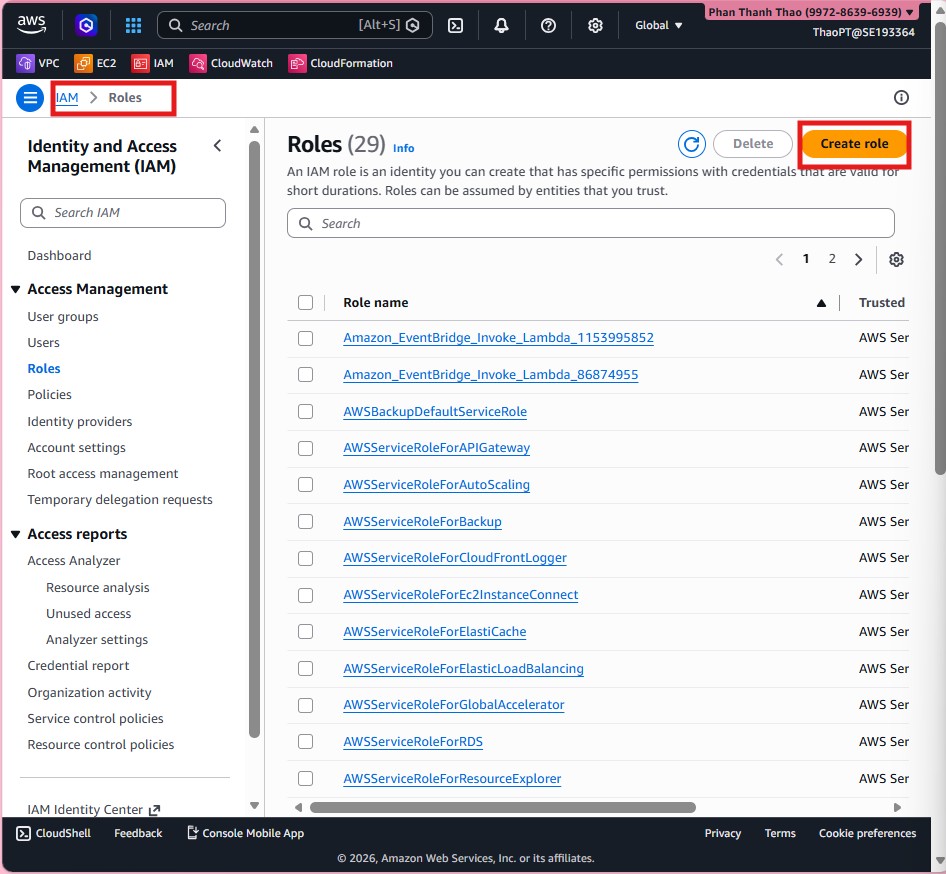
- Open IAM > Roles to prepare roles for ECS.
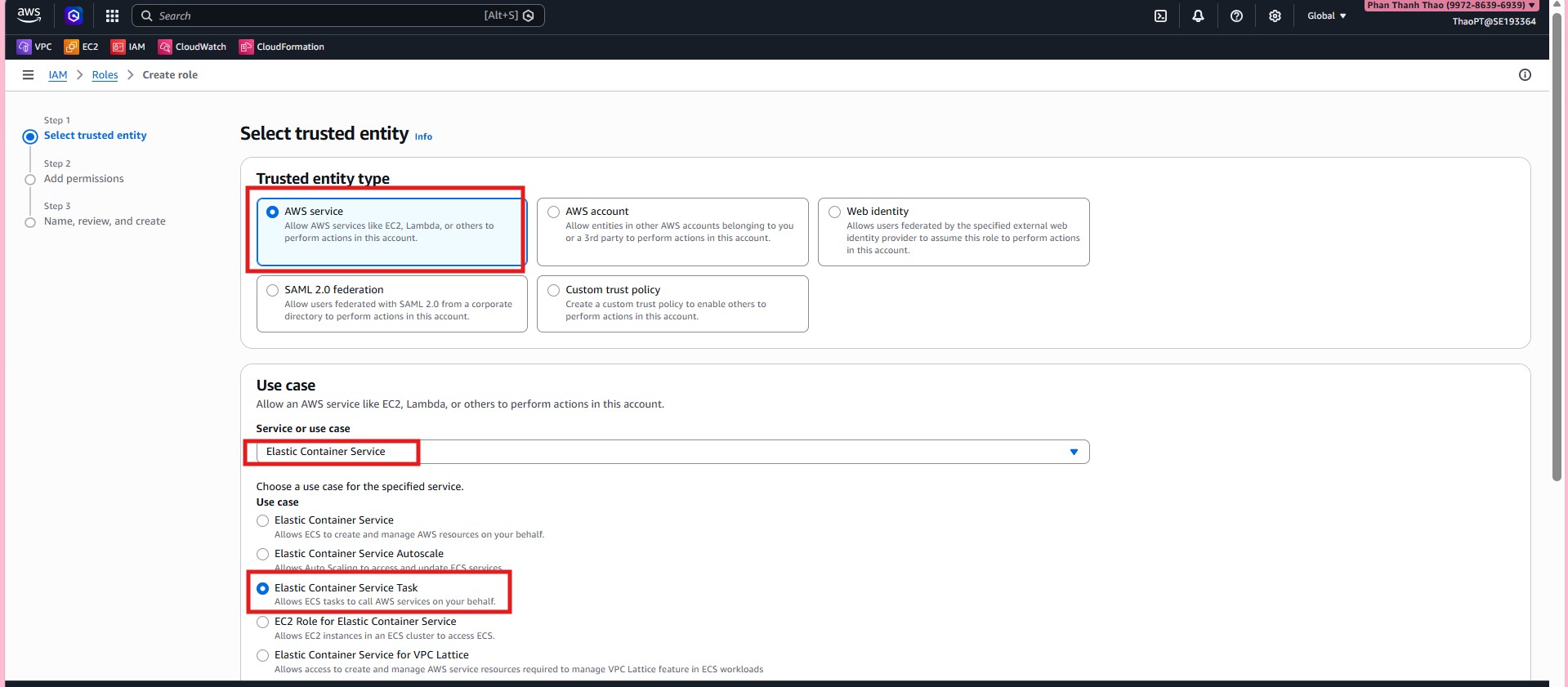
- Create a new role with trusted entity AWS service, select Elastic Container Service, and use case Elastic Container Service Task.
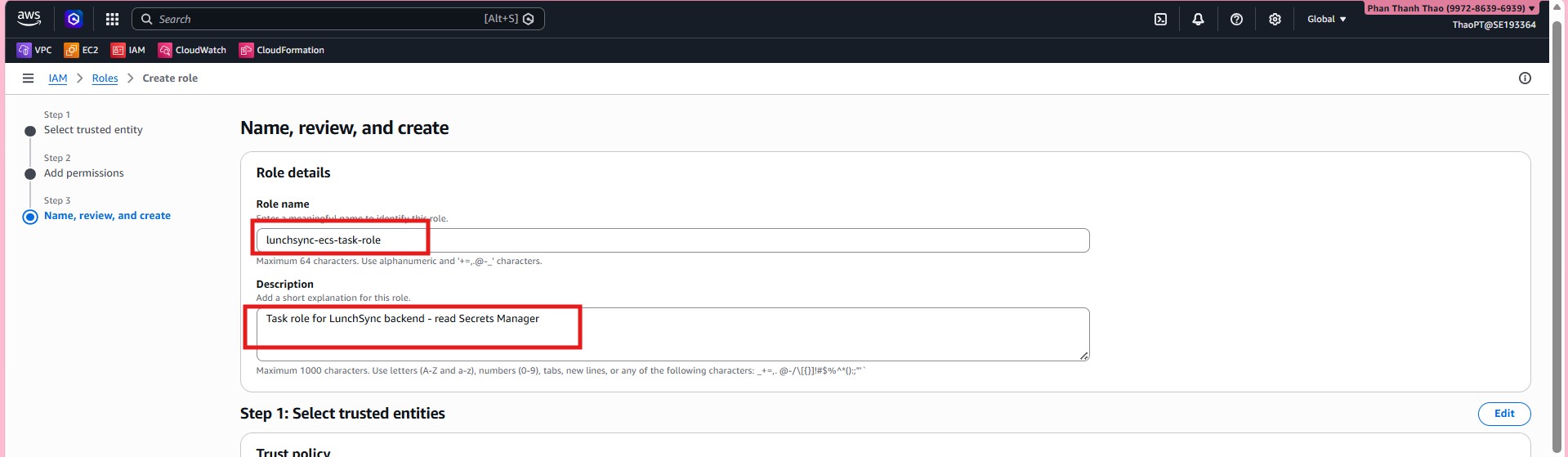
- Name the role
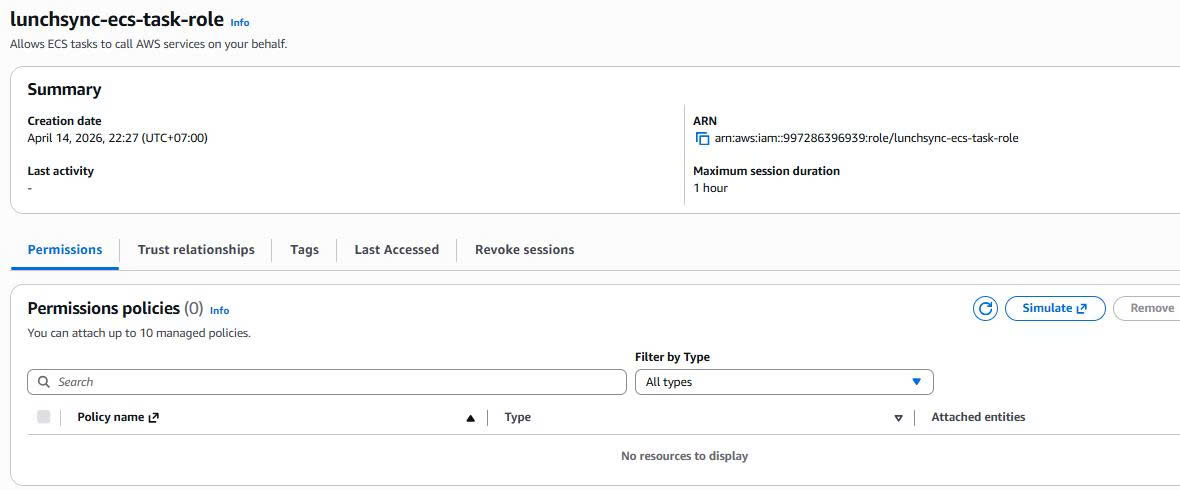
lunchsync-ecs-task-roleto use as the task role for the backend container, without adding permissions.
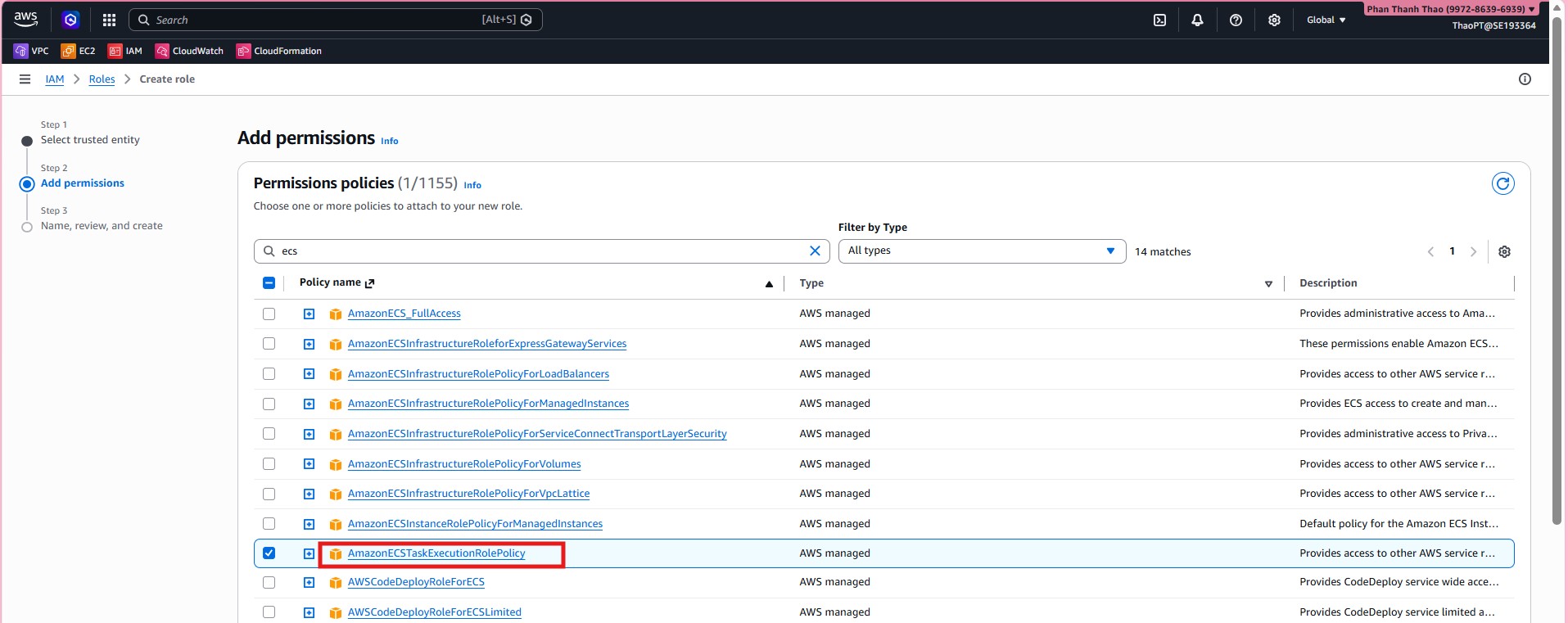
- Create a second role for the execution role, and attach the managed policy
AmazonECSTaskExecutionRolePolicy.
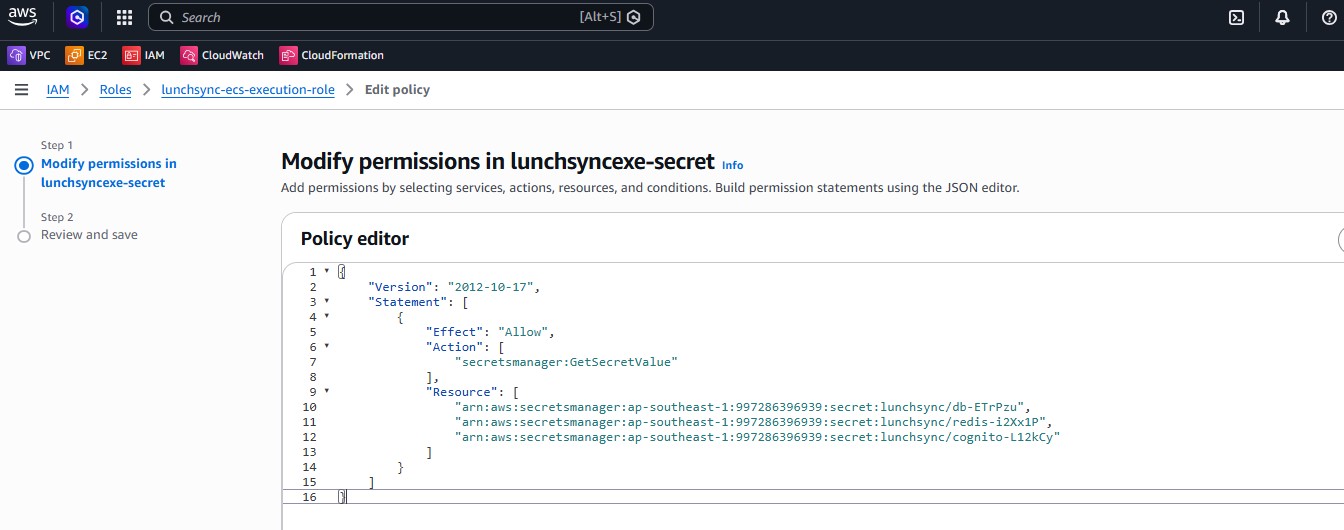
- Add an inline policy to the execution role so the ECS agent can read secrets injected into the container at runtime.
- Verify that
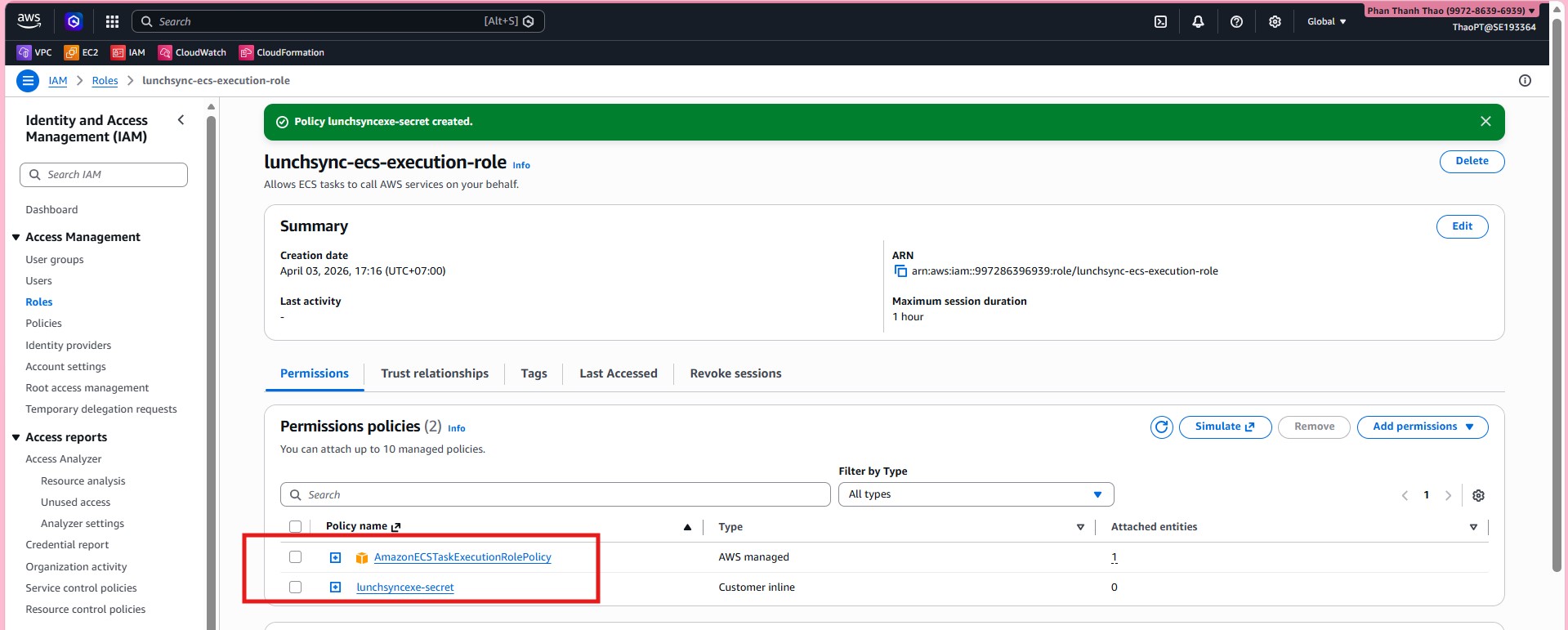
lunchsync-ecs-execution-roleincludes bothAmazonECSTaskExecutionRolePolicyand secret access permissions.
- Open Amazon ECS and navigate to Clusters.
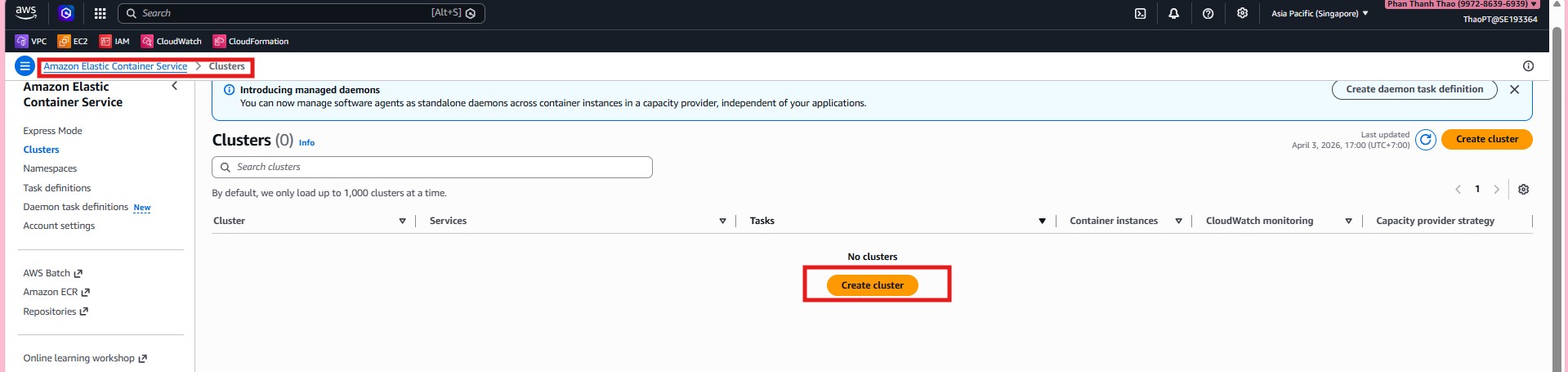
- Create a new cluster named
lunchsync-clusterusing Fargate only infrastructure.
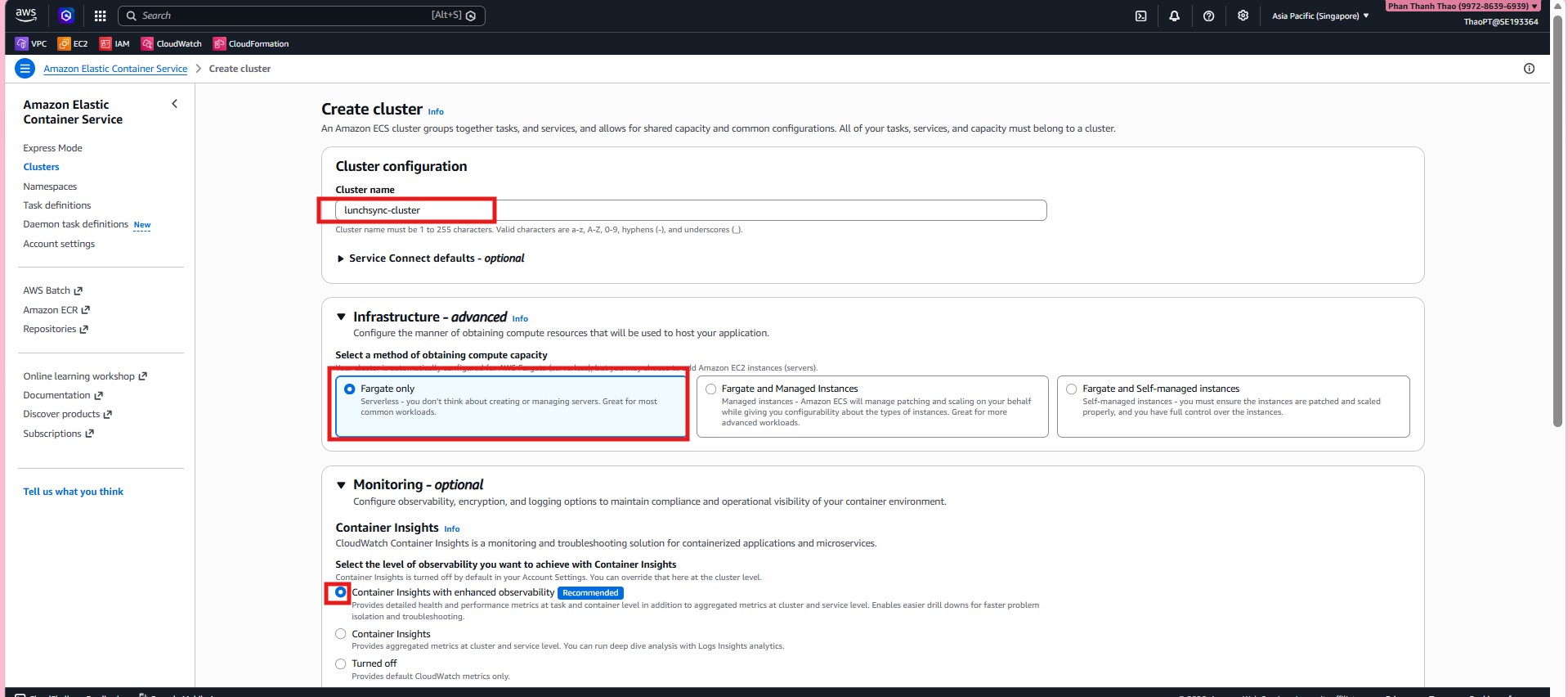
- Optionally configure observability features such as Container Insights and ECS Exec.
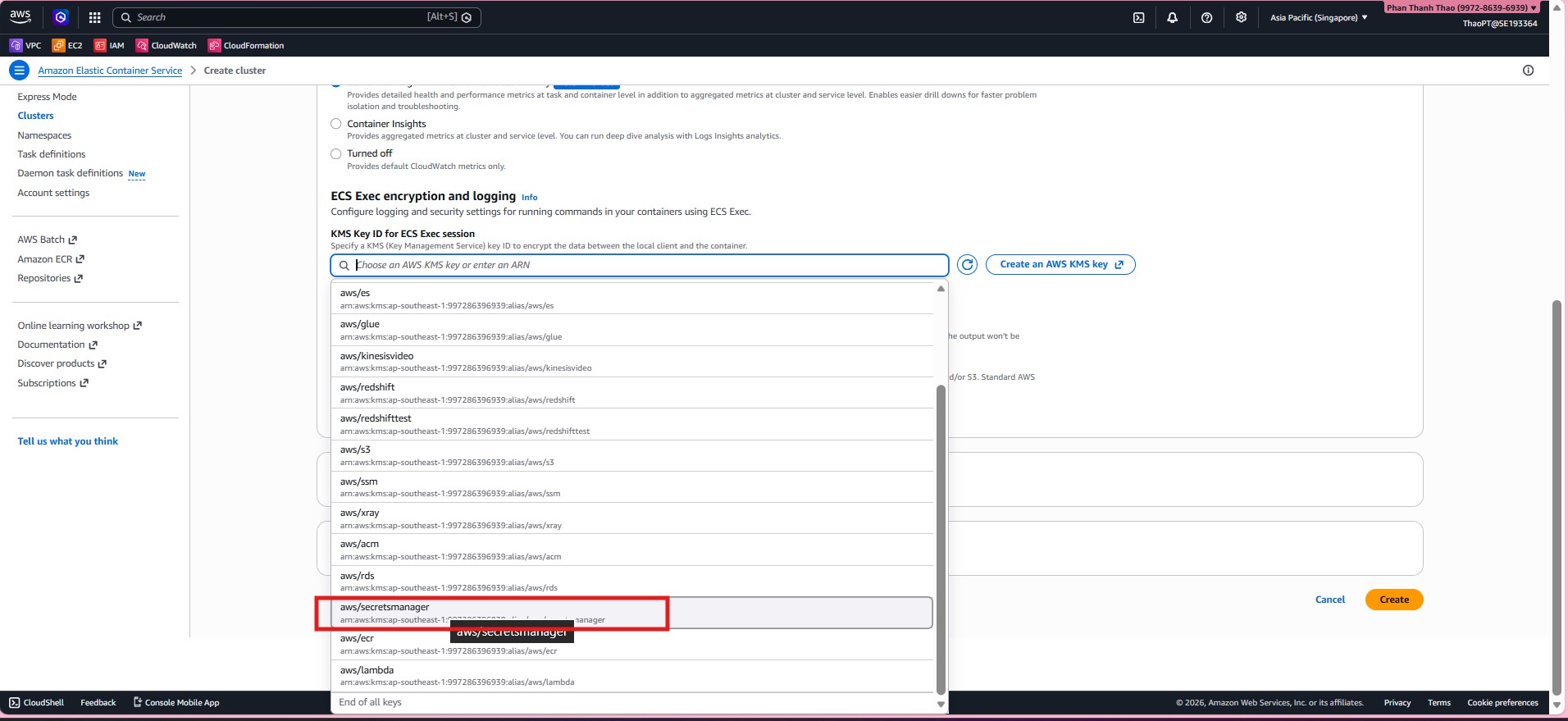
- Complete cluster creation.
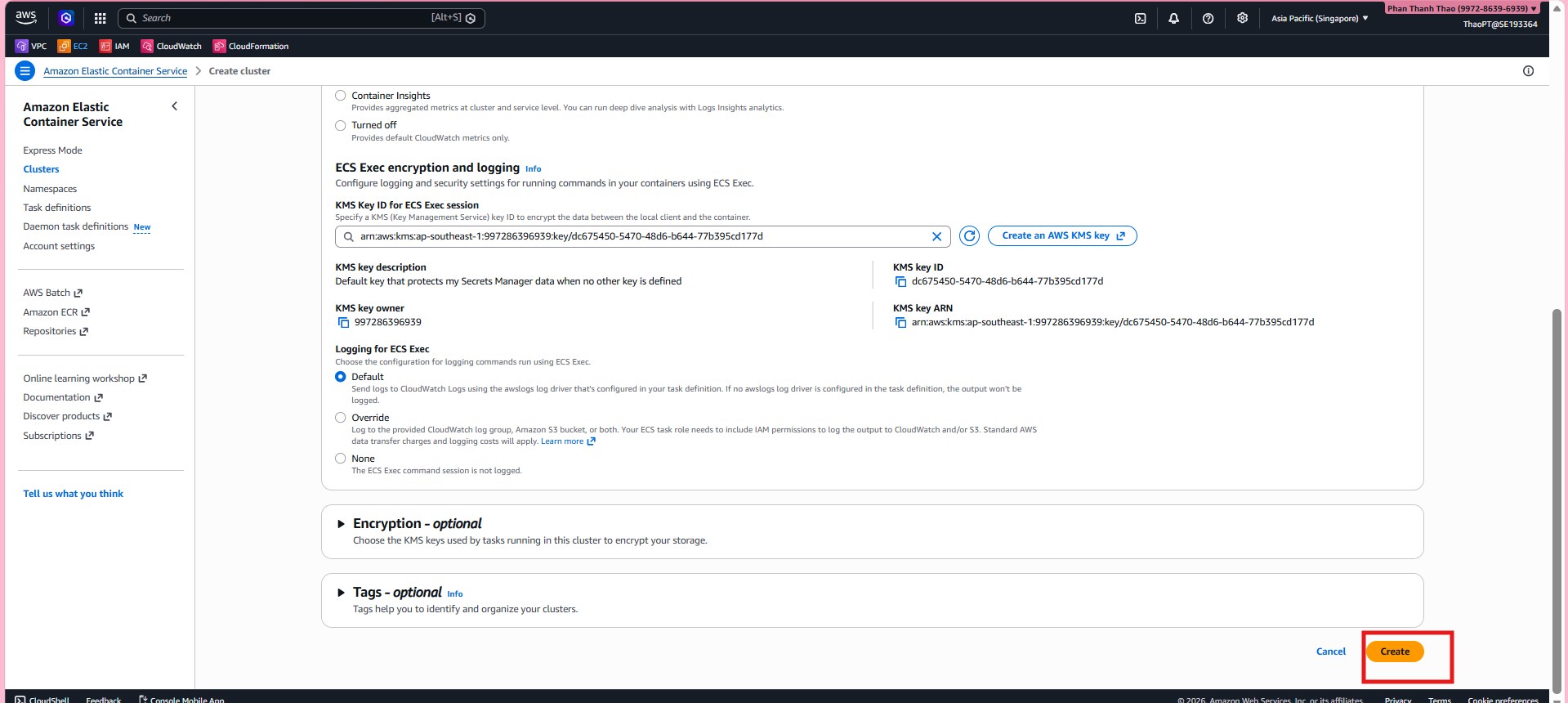
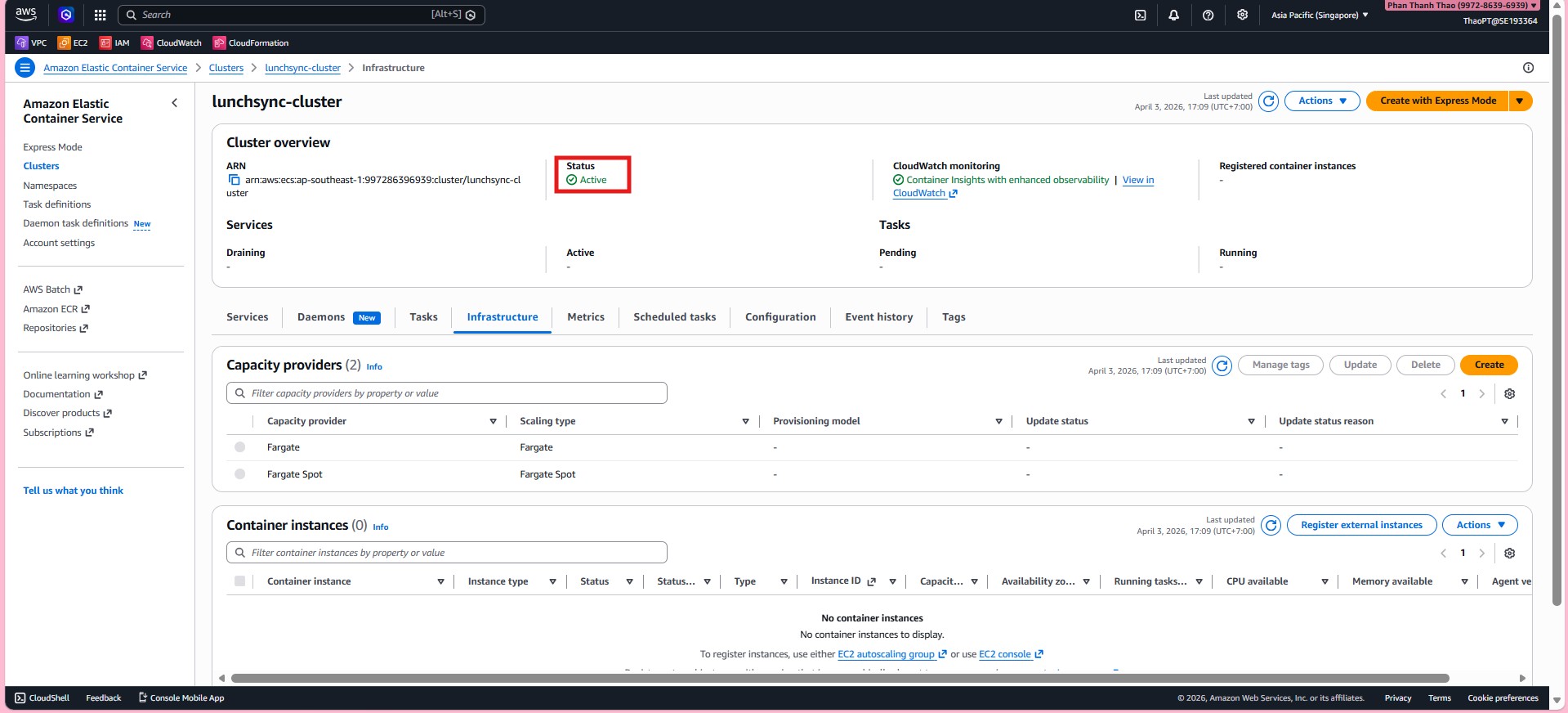
- Open
lunchsync-clusterand confirm it is Active with Fargate capacity providers.
- Navigate to Task Definitions and create a new task definition.
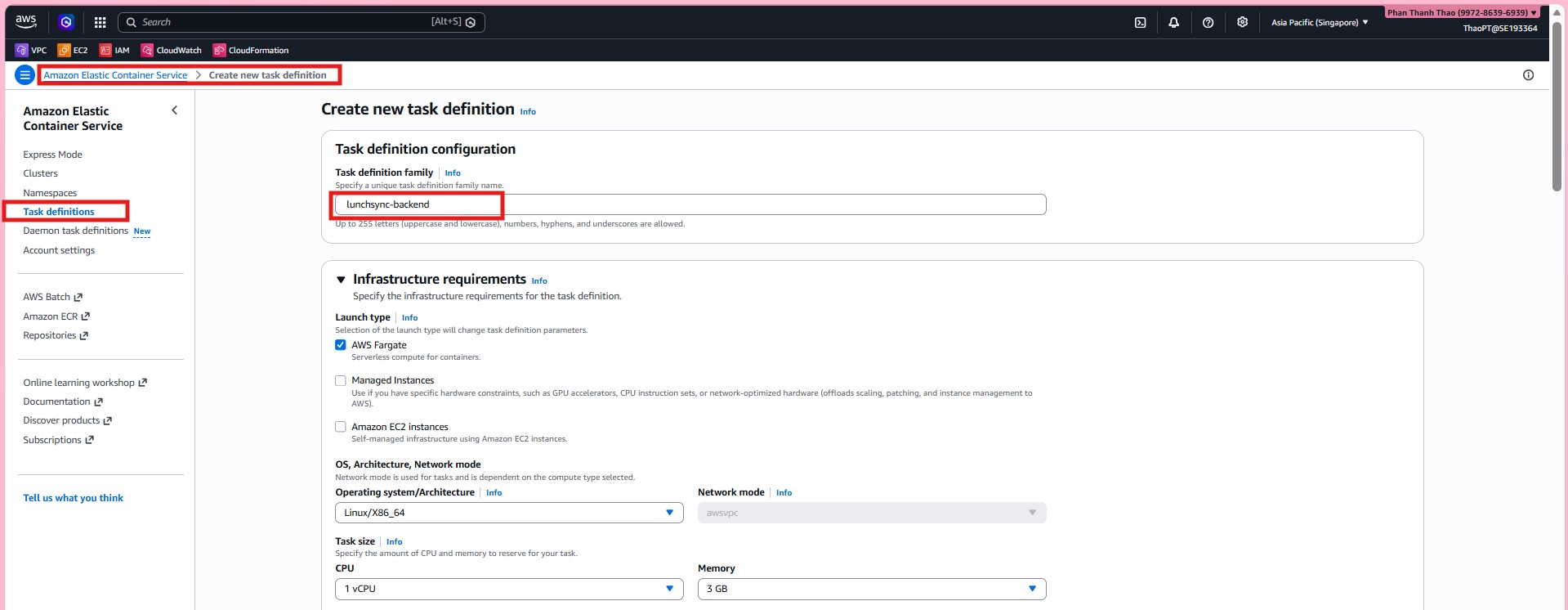
- Set:
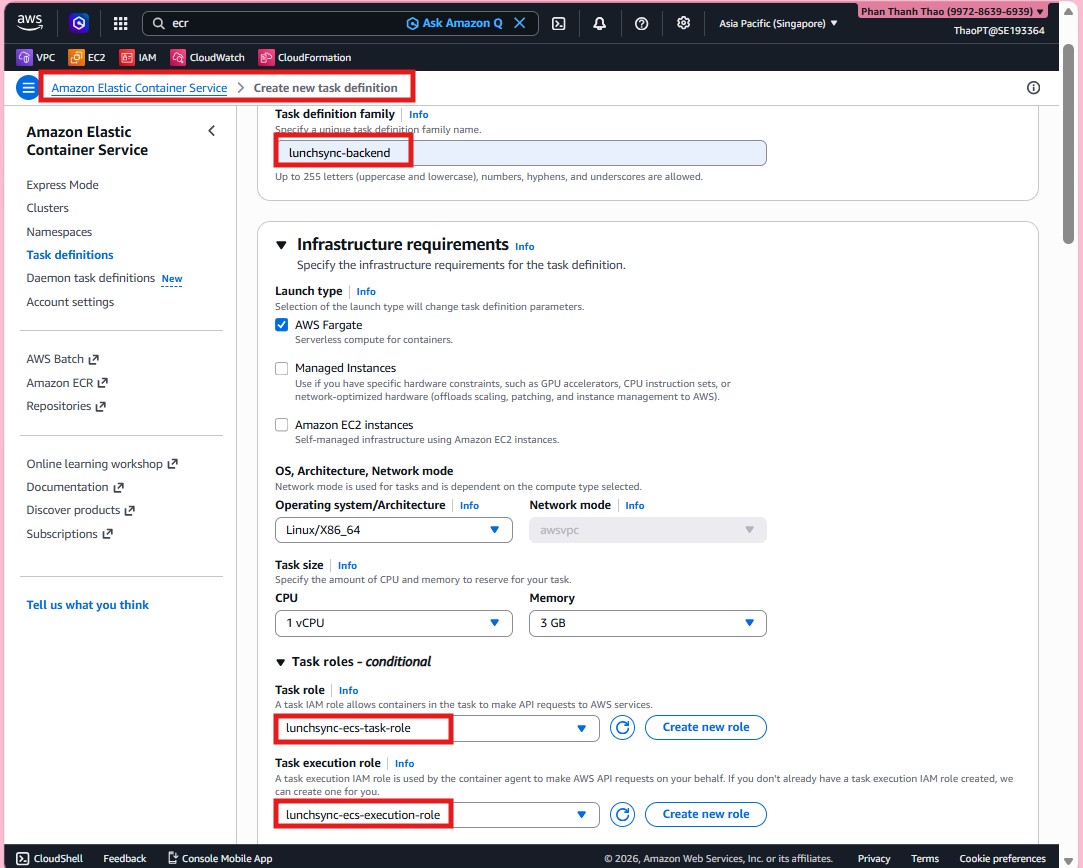
- Family:
lunchsync-backend - Launch type: AWS Fargate
- OS/Arch:
Linux/X86_64 - Network mode:
awsvpc - Task role:
lunchsync-ecs-task-role - Execution role:
lunchsync-ecs-execution-role
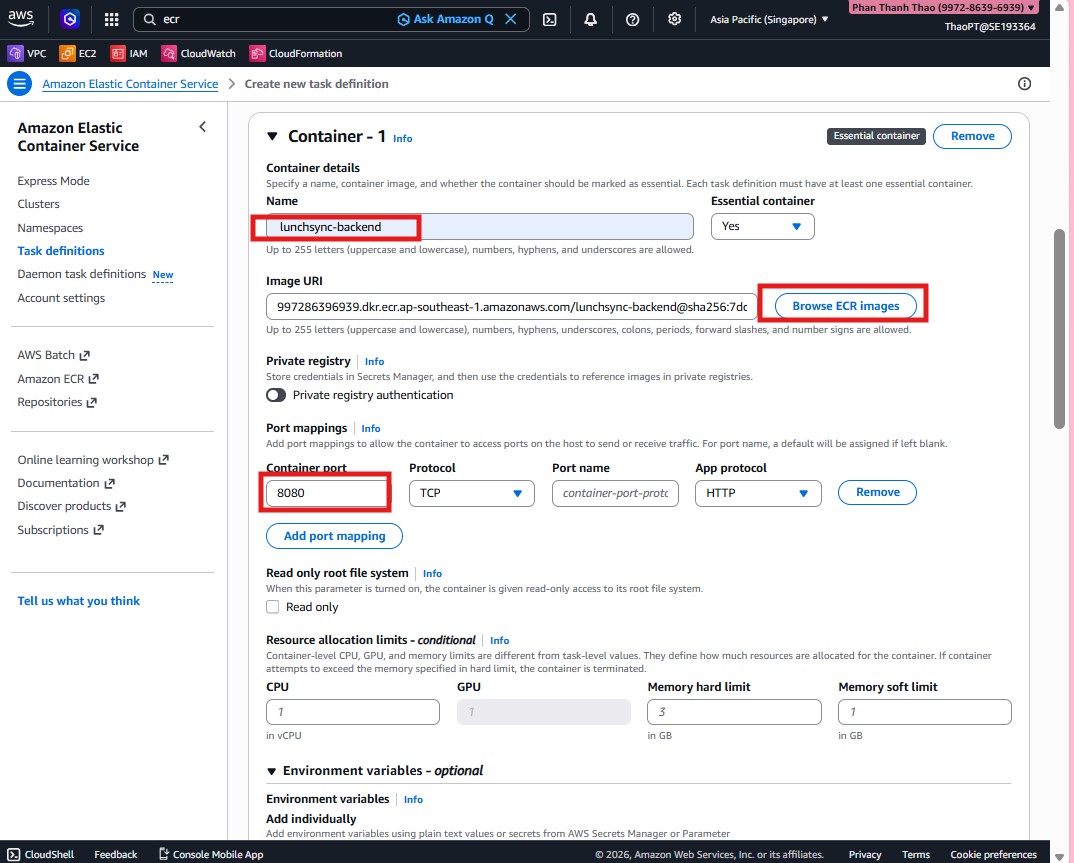
- Add container
lunchsync-backend, use image URI from ECR, and expose port8080.
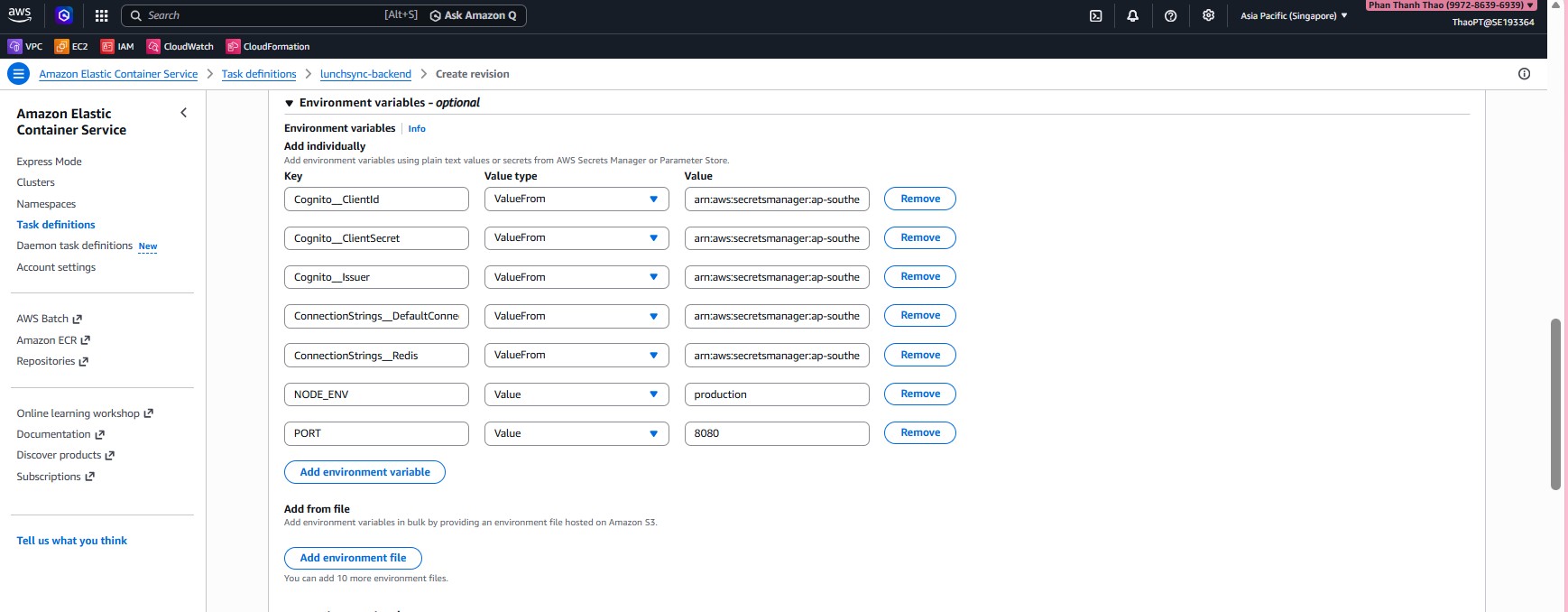
- Configure environment variables and secret mappings (Cognito, database connection, Redis,
NODE_ENV, and other runtime configs).
- Configure container health check, e.g.: